

Webix 11.3 is here bursting with updates! In this release, we introduced Core enhancements, exciting new features in Rich Text Editor, as well as extensive improvements across the library. Optimized rendering for touch devices and smarter Colorboard in Core, Markdown support and customizable context menu in Rich Text Editor, and much more. Below, we’ll go through all the key upgrades in detail.

Core Updates
Improved Dynamic Rendering on Touch Devices
Along with other fixes, Webix engineers continued improving Webix Grid* usability on touch screens. In the previous release, the widget received support for resizing columns. With the recent enhancement, Grid was refined to smoothly render data on mobile and hybrid devices while scrolling through table rows and columns.
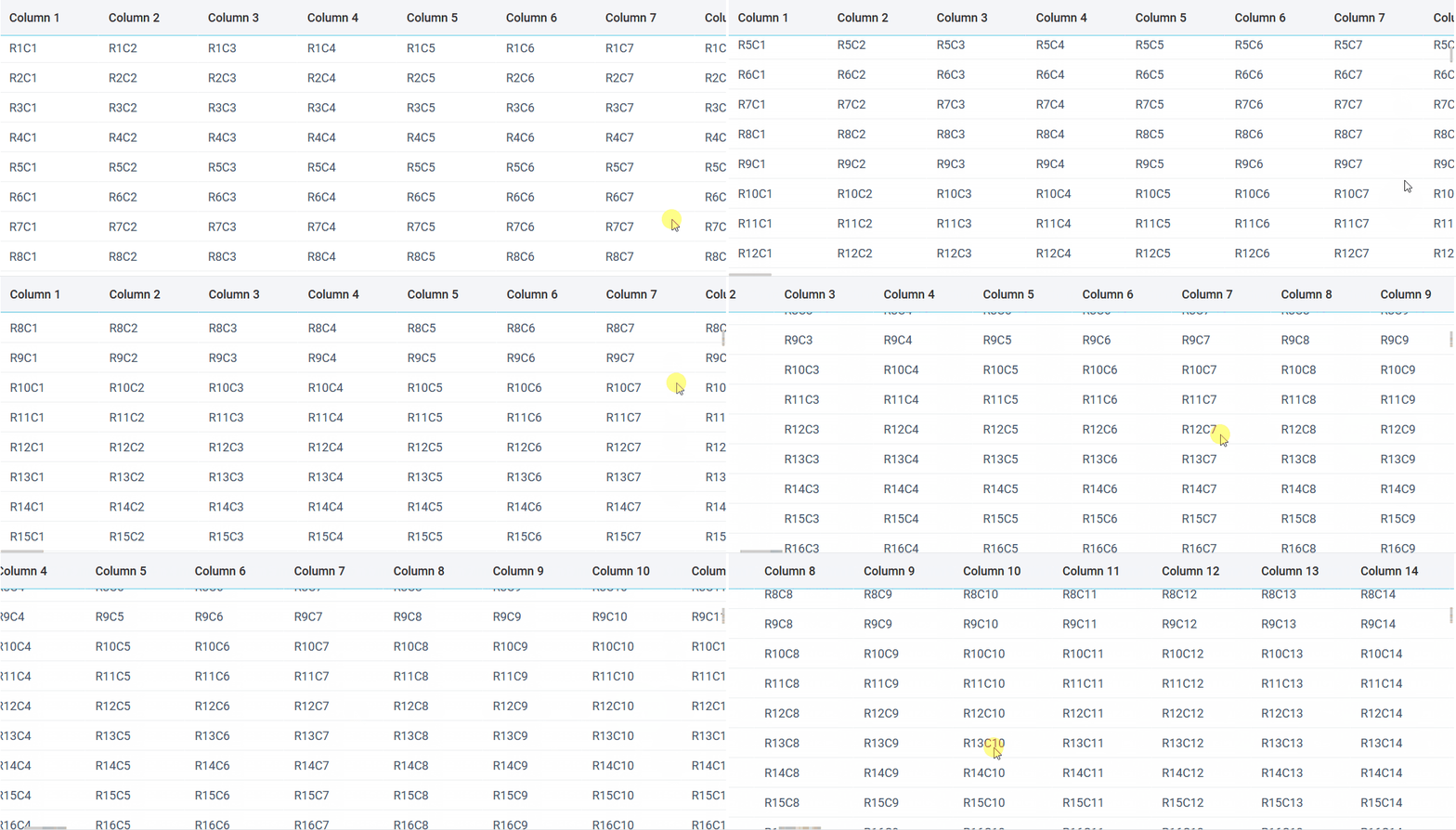
*Webix Grid is a standalone product introduced this year. All updates received by Grid are also applied to the DataTable component in Webix Core.
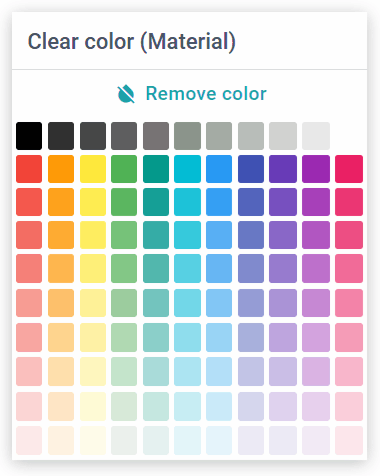
Reset to Default Color in Colorboard
In this release, the Colorboard was enhanced with the ability to roll back to the default color in case of an unsuitable color selection. You can do this via the dedicated “Remove color” button. To enable this control in the widget, you need to add a clear: true; setting to the Colorboard configuration (or to the Suggest configuration when Colorboard is used for inputs like Colorpicker). By default, the clear property is set to false.
Rich Text Editor Updates
Markdown Support
In v11.3, Rich Text Editor received a major upgrade: native Markdown support. This new feature is a must-have for WYSIWYG editors since Markdown is the most common format for LLMs and prompt engineering. The enhancement enables users of the widget to insert responses they get from AI-assistants directly into the editor, as well as copy content from the editor to their favourite digital notebooks or knowledge management tools like Google Docs or Notion.
Let’s now look at the new feature in more detail, focusing on the API upgrades and usability improvements.
Markdown Copy and Paste
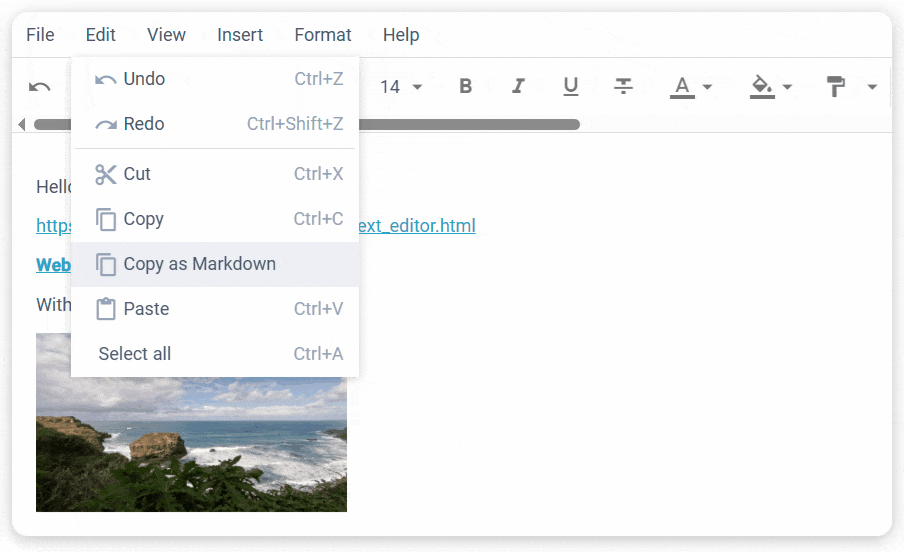
Now, users can copy the editor’s content as Markdown via the Copy as Markdown option available in the Rich Text Editor’s menubar and context menu. To copy the content, you need to select the target block and choose the dedicated option from the menu – the copy operation will be applied to the current selection. The paste operation for the Markdown is performed using the standard clipboard buffer.
Markdown Import/Export
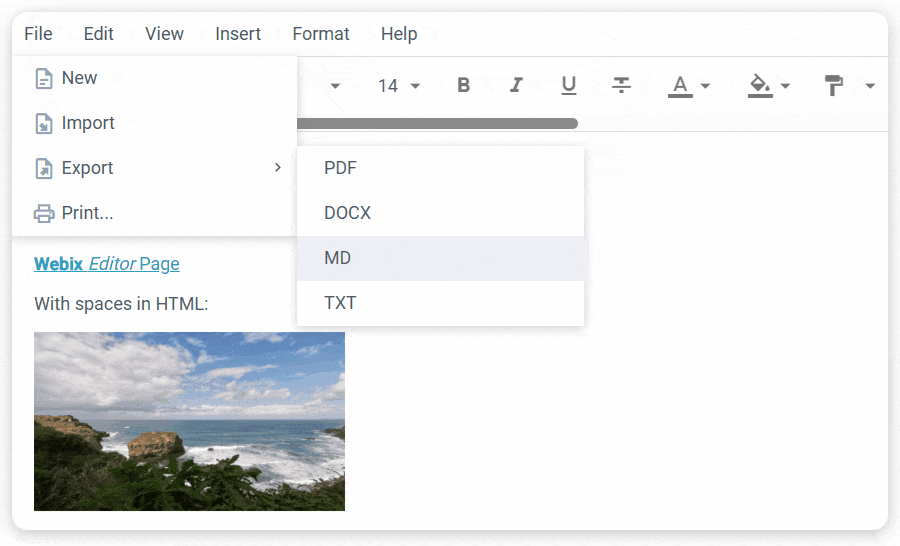
With this release, users can now import and export .txt and .md files to and from the editor. The new functionality allows creating content with consistent cross-system formatting for seamless work with CommonMark-compliant tools like Obsidian, Notion or popular docs engines. File export and import are available in the editor’s menu bar (Export and Import options).
API: getValue/setValue Extended with the Markdown Option
To provide API support for handling markdown programmatically, setValue and getValue methods, which are used for defining and retrieving Rich Text Editor’s content, were extended with a new “markdown” option for their type parameter (in addition to the existing “html”, “text”, and “raw” options). Now, you can set and get values for the editor in the following way:
const mdValue = editor.getValue("markdown");
API: Broader Format Support in value Property
Since Rich Text Editor now supports a wider range of formats, its value property, which defines the editor’s content upon initialization, was enhanced with a new datatype parameter. This parameter enables developers to specify the default format for the initial content of the editor and accepts the following options: “text”, “html”, “markdown”. Previously, the initial value property could be set in the HTML format only.
view: "editor",
datatype: "markdown",
value: "**Hello World**",
});
Please note that the Markdown parser does not support nested structures. This means that if you try to insert, e.g. bold text inside italics, links inside list items, or multi‑level lists via setValue(…, “markdown”) or by importing .md files, the content will not be displayed correctly.
Context Menu
To provide straightforward access to content-specific actions, Rich Text Editor was boosted with the context menu. It offers three groups of action – clipboard, format, and insert – ensuring that frequently performed operations are right at hand and users don’t need to search for them in the editor’s Menubar or Toolbar. The context menu is disabled by default, so you need to explicitly set the contextMenu property to true in the editor’s configuration to enable it.
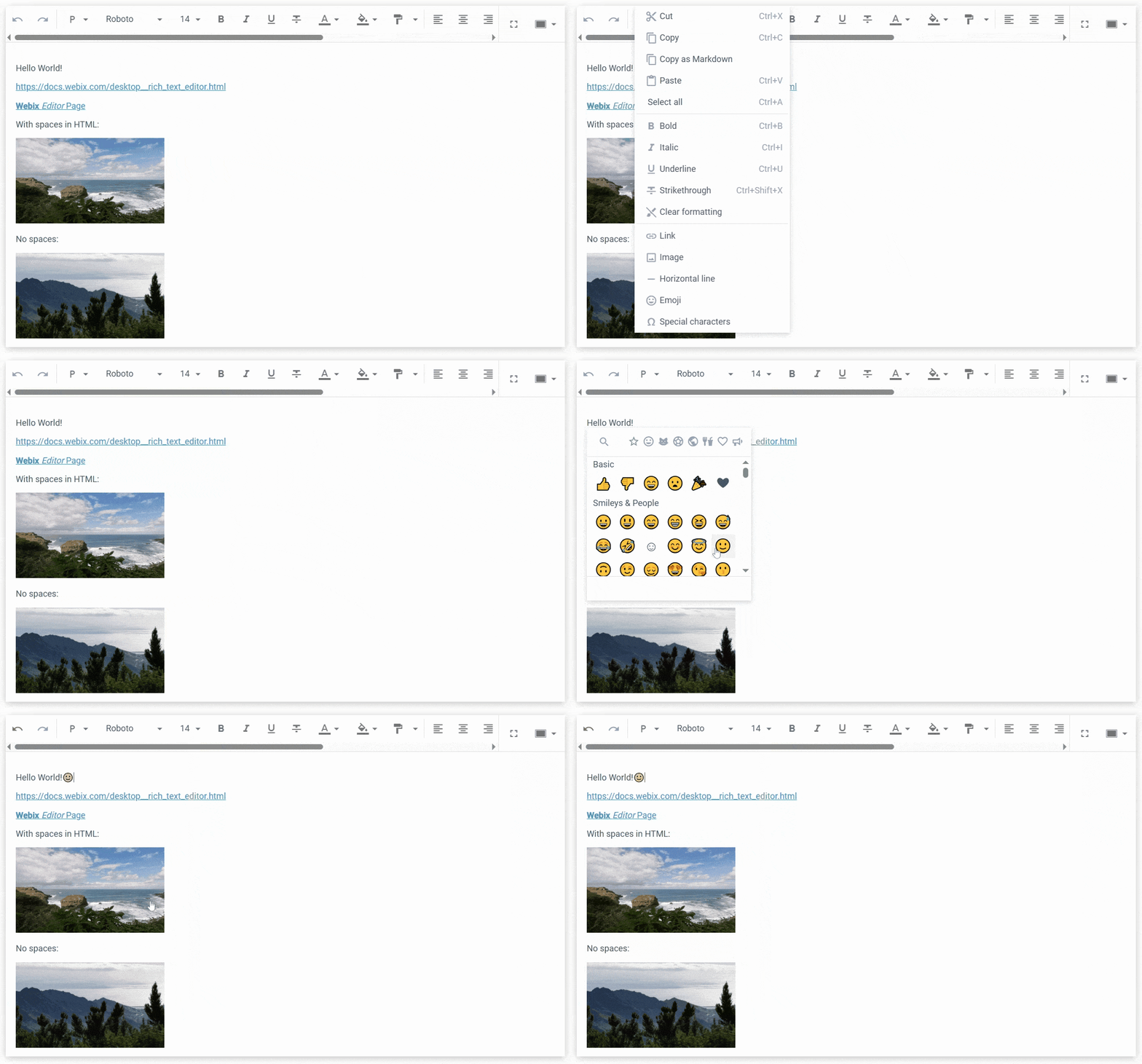
You are free to customize the menu: keep only the actions you need from the default configuration or add new operations and handle them via the onContextMenuItemClick event. Check this snippet to see how to build your custom context menu.
Text and Background Colorpickers Reset
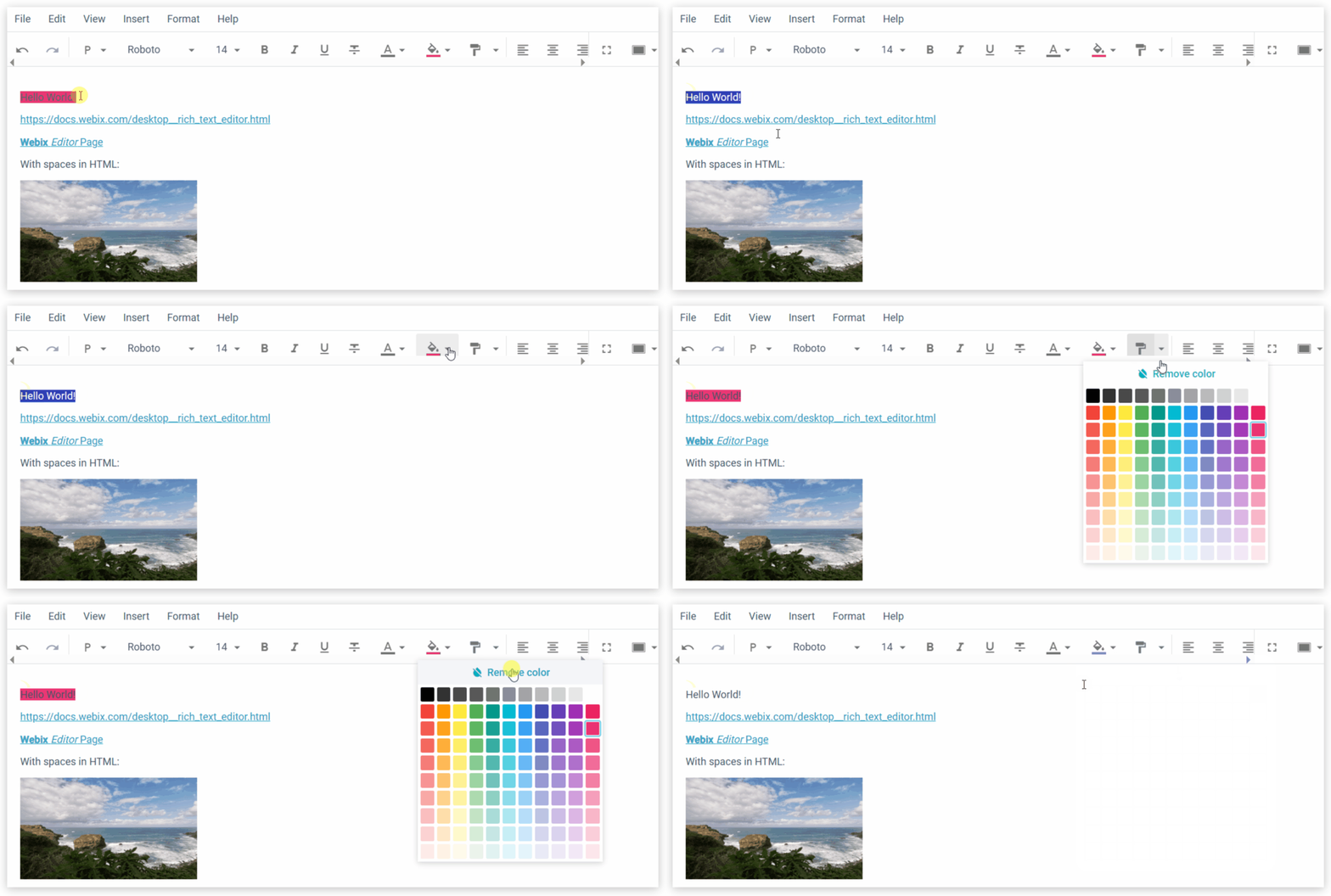
Due to the Colorboard update, the same reset functionality was introduced in Rich Text Editor. Now, its Text and Background color selectors also have a “Remove color” button. The new option can be really handy in cases when you switch between light/dark modes and realise that the colors you’ve chosen are hard to distinguish or they are not compliant with the design of the app. The button is enabled by default, but you can disable it in the toolbar configuration or within the config() method of the JetView class.
Other improvements
Explore the What’s New page for a full rundown of the latest Webix upgrades and optimizations. To get the library itself, upgrade via npm, Client area or click the big purple button below. For questions and feedback, head over to our forum and start the discussion.